- Don't Get Left Behind
- Posts
- Turn PDFs and Screenshots Into Usable Data
Turn PDFs and Screenshots Into Usable Data
My first publication, I hope you like it.

Tom Babb
January 04, 2025
Hello and welcome to my 39 subscribers.
This newsletter is here to prove one thing: AI matters. If you’re not using it, you’re already behind. So start reading and… don’t get left behind.
I use ChatGPT for many of my examples, but the prompts I share work with any major language model out there.
The first lesson comes by request from my brother (yes, he’s behind). If you’ve got frustrations you want solved with AI, send them my way. Let’s fix them together.
Lesson 1: Information Extraction
Ever been stuck with a PDF or screenshot you can’t interact with? No copy-paste. No quick edits. It sucks.
Here’s the fix: upload the file to GPT and let AI do the heavy lifting.
Ask it to extract the information you need. For example:
Extract data from a PDF
Here's the prompt: "Extract all tables from this PDF, transcribe it into a table, and save as a CSV file."
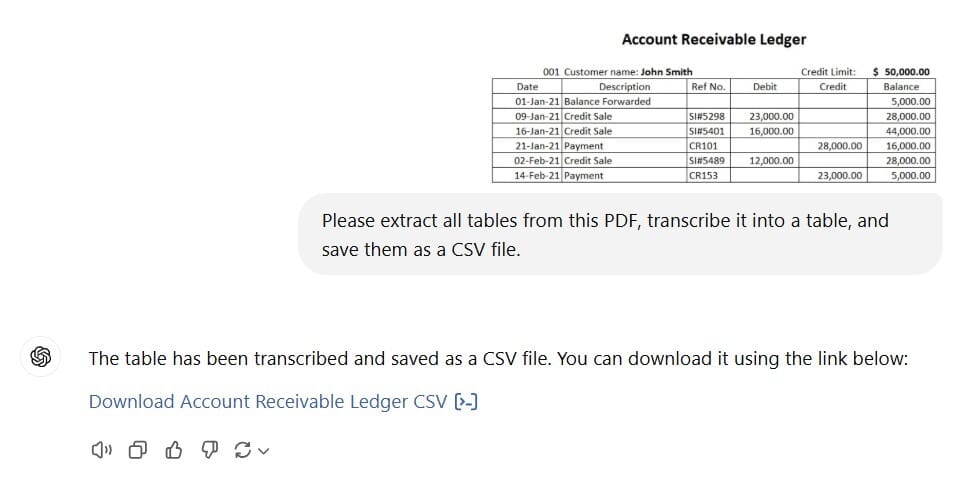
Screenshot of my conversation with GPT.
If I click on that blue link provided, you can download a CSV file that looks like this…
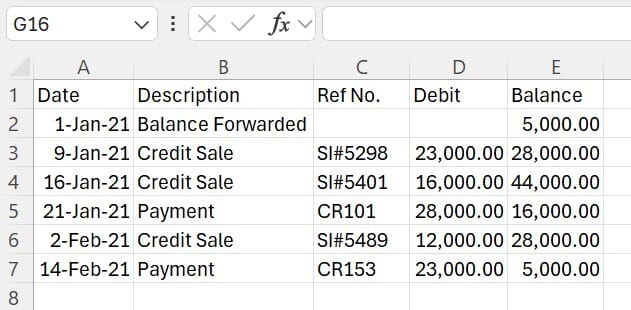
That's it. Now you can nerd out in a spreadsheet.
Extract text from a screenshot.
Here's the image I want to extract text from. As you can tell, there's a lot going on in this picture.
PS: This was my senior capstone project in college. We came up with a marketing campaign to sell… hotdogs. (shout out to one of my subscribers/team members, JB!)
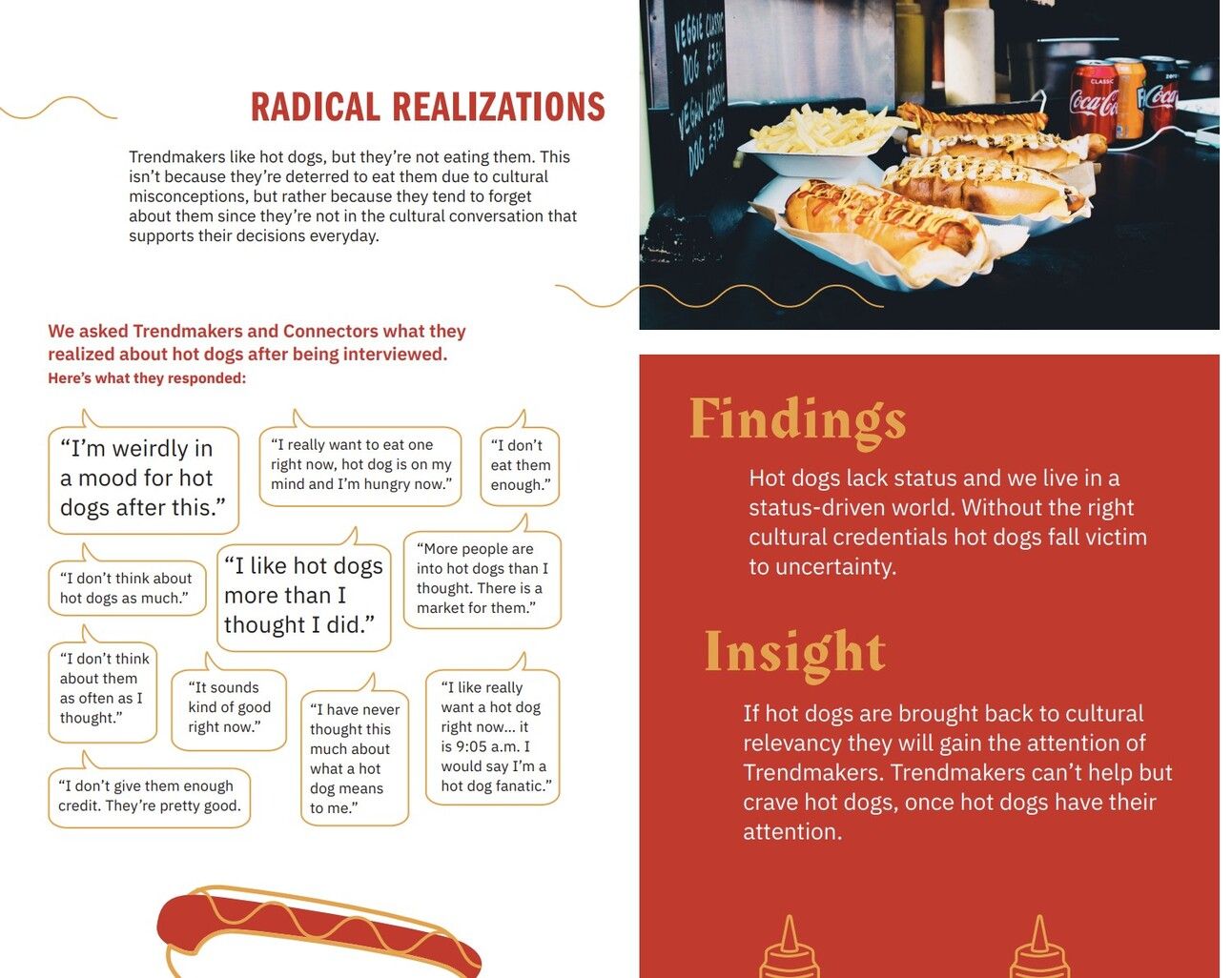
Here's the prompt: "Please extract the text from this screenshot and transcribe it verbatim."
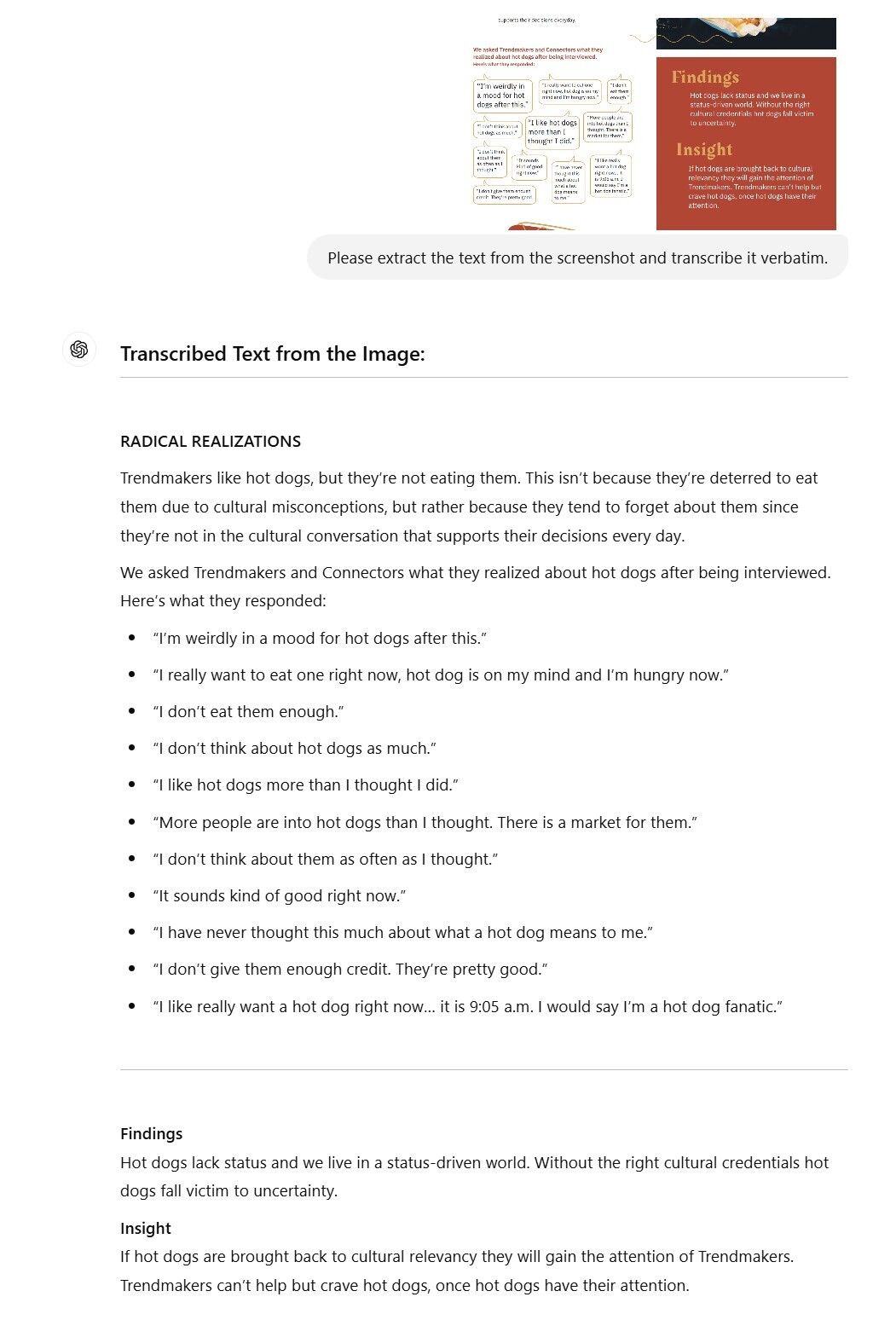
Screenshot of my conversation with GPT.
That's it. From there, you can copy and paste or interact with the text however you would like.
👀 Be sure to always read over the output to make sure it is accurate. GPT does hallucinate sometimes.